Digitising council records: a practical guide
Planning files, registers, minutes and correspondence fill strongrooms and offices across every local authority. Scanning them makes records quick to find and share, and frees up space. This guide covers how to plan the work, from choosing what to scan first to what happens to the originals.
Paper2Cloud · Updated November 2026 · 7 minute read
How long will it take? A worked example
Illustrative figures; your own will depend on the files and how much preparation they need.
200
Archive boxes of planning files
~500,000
Pages, at about 2,500 per box
20,000
Pages a day on one production scanner
~25
Working days of scanning, before prep and QA
Preparing files (removing staples, sorting, flattening) often takes as long as the scanning itself, so plan staff time for both.
1. Decide what to scan first
Don't start with the oldest boxes. Start with the records people ask for most, because that's where scanning saves time first:
- Frequently requested files: planning files, property and housing records, and anything often pulled for freedom of information requests.
- Records shared between offices or area offices, so they no longer travel by post or van.
- New paper as it arrives (“day-forward” scanning), so the backlog stops growing while you work through it.
Check each series against your authority's records retention policy before scanning. Records due for destruction don't need scanning at all, and some series may need to be kept in their original form regardless.
2. Prepare the records
Good preparation is what keeps a scanner running at full speed:
- Remove staples, paper clips and treasury tags, and repair torn pages.
- Flatten folded pages and unfold drawings.
- Keep each file in its original order, with a cover sheet showing its reference.
- Set aside bound volumes, fragile pages and large drawings for a flatbed or book scanner.
- Note anything unusual (sticky notes, photos, coloured paper) so it isn't missed.
3. Choose the right scanners
Most council projects need a mix:
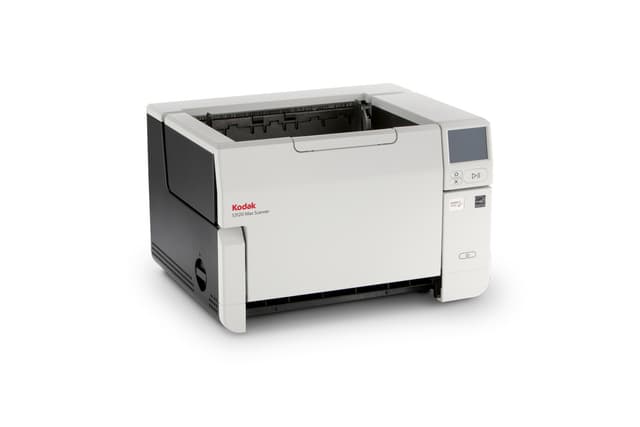
- A production scanner for the bulk of loose A4 and A3 paper: tens of thousands of pages a day with a large feeder.
- An A3 flatbed or book scanner for registers, minute books, fragile pages and drawings that shouldn't go through a feeder.
- Desktop scanners in each office for day-forward scanning of new post.
A3 matters for planning: drawings and reports often mix A4 and A3, and an A3 scanner takes both in one batch. See our public sector solutions
4. Settings and file formats
- Resolution: 300 dpi suits most text documents and keeps files a sensible size. Use higher (400–600 dpi) for small print, old handwriting and detailed drawings.
- Colour: scan in colour where colour carries meaning (stamps, highlighted plans, photos); black-and-white or greyscale elsewhere saves space.
- Format: searchable PDF is easiest for everyday use. PDF/A is a version of PDF designed for long-term archiving, worth using for records you'll keep for many years.
- Blank pages: let the software remove blank backs automatically, but keep a setting that flags rather than deletes, for pages that are nearly blank.
5. Index so files can be found
A scan is only useful if people can find it. Agree up front what each file will be named and indexed by, for example the planning reference, address, file number and date.
- Barcode or patch sheets between files let the software split a batch into separate files automatically.
- Text recognition (OCR) makes the content searchable, and can read the reference from a set place on the cover sheet to name the file.
- Send files straight to where they belong: your document management system, SharePoint or a structured folder system.
Ricoh PaperStream and Kodak Capture Pro both do all of this. More about the software
6. Check the quality
Build checks into the process rather than at the end. Compare page counts against the original, spot-check a sample of every batch for missing, skewed or unreadable pages, and rescan before the file goes back in its box. A simple batch log (who scanned what, when, and who checked it) makes the project easy to track.
7. Storage, access and the originals
- Store scans with the same access controls as the paper files, especially records containing personal data.
- Keep backups, and check that files open correctly after they're moved or copied.
- Keep the originals until the scanned files have been checked and signed off. After that, what happens to each series is decided by your retention policy.
- When paper is approved for destruction, use secure shredding with a certificate.
Production scanners for records projects
See all production scanners →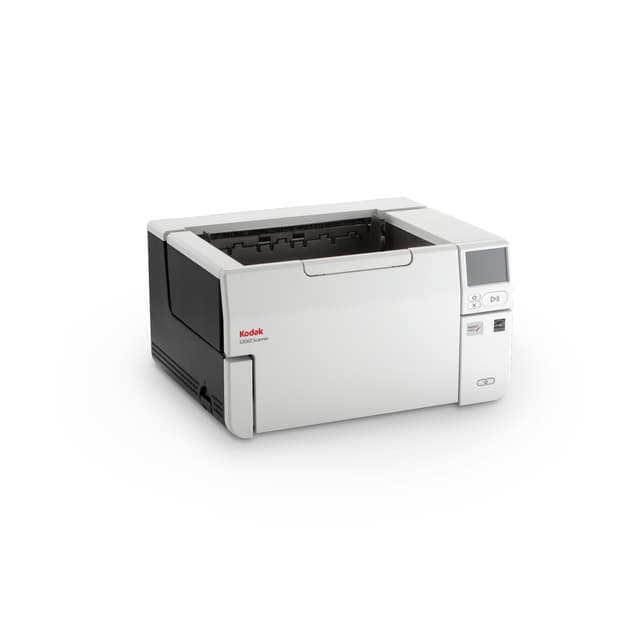
Planning a records project?
Tell us roughly how many boxes and what's in them. We'll recommend the right mix of scanners, quote ex-VAT against a purchase order, and install and configure them on site.